Complete Skool Setup Guide + Free Templates (2024)
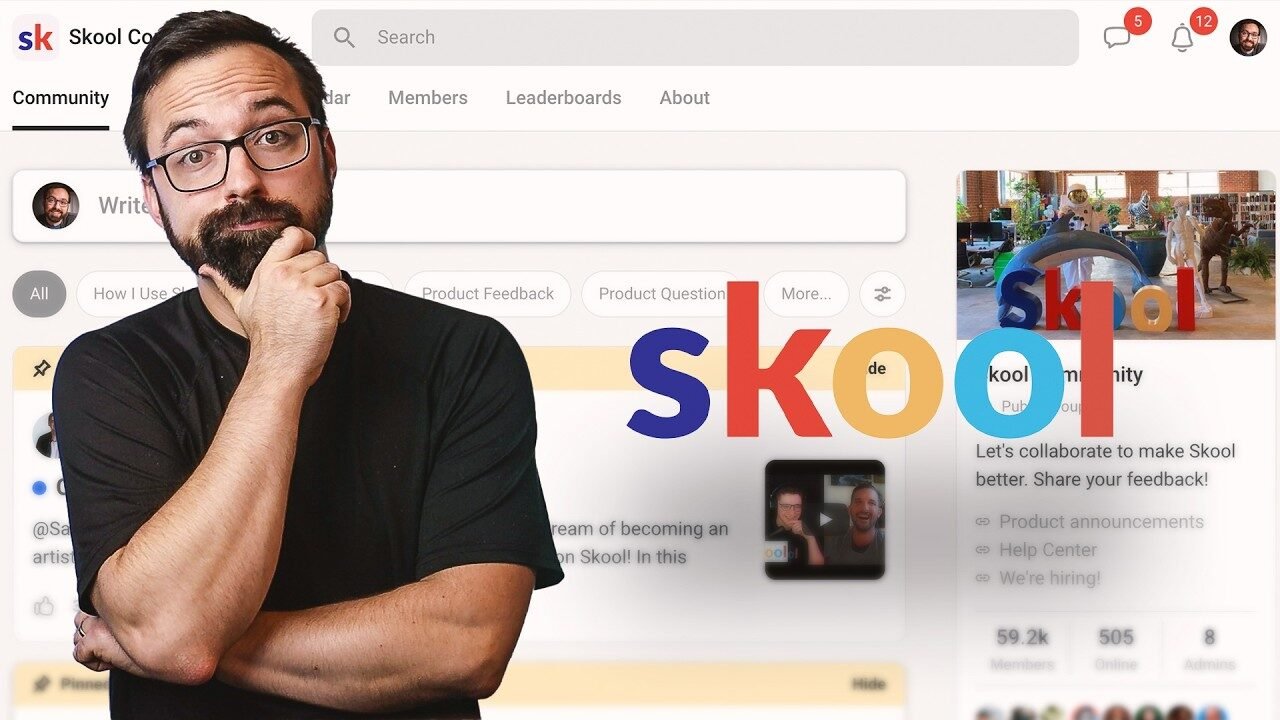
In my latest video, I walk you through the complete process of setting up a Skool community from start to finish. You’ll learn every essential step, from signing up to creating your first post, and I’m including free Canva and Photoshop templates so you can quickly create professional branding images for your community.
This comprehensive guide will save you hours of trial and error by showing you exactly what works.
In this video, I provide everything you need to launch your community today.
Why Skool is the Best Community Platform Available
In my experience testing various community platforms, Skool stands out as one of the most effective options for hosting courses, managing calendars, and building engaged communities. What makes it exceptional is the built-in gamification through leaderboards and its clean, efficient layout that actually keeps members coming back.
I explain in the video that many other platforms become ghost towns over time because they’re either too complicated to use or filled with distractions. Skool solves this by offering a simple, dedicated space where your community can thrive without the noise of social media platforms like Facebook groups that constantly pull members away.
The platform is backed by an impressive team including Alex Hormozi and Sam Ovens, and I compare Skool to Google in terms of its philosophy: simple, not overcomplicated, and quick to get started. Whether you’re a course creator, community leader, business owner, or coach, this platform provides everything you need in one place.
Getting Started: The Sign-Up Process
I demonstrate in my video how straightforward the signup process is. You simply click the trial link, enter your group name—I use “Creator’s Circle” as an example—and input your credit card information. The transparent pricing model is one of my favorite aspects: $99 per month with no hidden fees, unlimited features, and the ability to cancel anytime.
Unlike other platforms that charge extra for additional features, Skool gives you everything included from day one. Your first charge occurs after the 14-day free trial period ends, giving you plenty of time to explore and set up your community without any financial commitment.
Essential Branding: Cover Images and Icons
One of the first things you’ll want to do is customize your community’s appearance. I’ve created free templates that include the exact dimensions you need for every image type in Skool. These templates are available in both Canva and Photoshop formats, making it easy regardless of which design tool you prefer.
In the video, I show you how to access these templates and duplicate them into your own account. The templates include properly sized artboards for the cover image, icon, about page cover, about page image, and course cover. This way, design isn’t the bottleneck preventing you from launching your community—you can simply customize the colors and text to match your brand.
Writing Your First Post: The Start Here Strategy
I strongly recommend making your first post an introduction thread where new members can share about themselves. In my video, I reference the Finishers Elite community as an example of how to structure this effectively. The post should include a short welcome video (under five minutes, ideally around two minutes) that you can host on Loom, YouTube, or Vimeo since Skool doesn’t allow direct video uploads.
Ask simple questions like where members are from, what they’re working on, and include a fun question about their favorite band or hobby. This sparks conversations and connections between community members who discover shared interests. I also demonstrate how to use the “add action” feature, which shows the post as incomplete in members’ feeds until they engage with it—a clever way to drive participation.
Setting Up Your Calendar and Events
The calendar feature is incredibly useful for hosting regular events like Q&A sessions or coaching calls. In my walkthrough, I create a “Weekly Coffee Hour” event to show you the process. You can specify who the events are for by member level or course enrollment, set the meeting location (Zoom, Google Meet, or custom link), and make events recurring.
I show how to set up a recurring event that happens every Monday at 10 a.m., and you can even configure Skool to automatically email reminders to members one day before the event. The platform displays your next upcoming event prominently on the about page, making it easy for members to stay engaged.
Organizing Your Community with Categories
Categories help structure your community discussions. In the video, I create several example categories including “Celebrate Wins” with a trophy emoji, and an “Announcements” category where only admins and moderators can post. This prevents your important updates from getting lost in general discussion and gives members clear places to share specific types of content.
You have full control over who can post in each category—either everyone or just admins and mods. I explain that while this simplicity might feel limiting if you need extensive customization, it’s actually a strength because it prevents the platform from becoming overcomplicated.
Building Your Classroom and Course Content
The classroom feature is where you host your course content, and I walk through creating a “Start Here” course in my video. You can add individual pages or organize content into folders for better structure. Each page supports rich formatting options including headers, bold text, bullet points, code blocks, quotes, images, links, and embedded videos.
I demonstrate how to add resources, transcripts, and pin community posts directly to course pages, creating a seamless connection between your educational content and community discussions. You can also set up drip scheduling to release pages a certain number of days after a member joins, which is perfect for structured learning experiences.
Advanced Settings and Customization Options
The settings area contains powerful features that I explore in detail. The membership questions plugin lets you collect information when people join—I create example questions about annual revenue with multiple choice options. You can also capture email addresses here, which is valuable for building your email list alongside your community.
I show you how to set up auto-DM functionality that automatically welcomes new members with a personalized message, which you can customize to direct them to your introduction post or important resources. The “unlock chat at level 2” feature is useful if you have a free tier and want to prevent spam, though I note it’s less necessary for paid communities.
Gamification and Member Levels
One of Skool‘s standout features is its built-in gamification system. You can create custom level names—I suggest examples like “Starter,” “Guru,” and “Elite”—and unlock special bonuses at each level. These rewards might include a t-shirt, special access, or a personal coaching call.
The leaderboard creates healthy competition and encourages consistent engagement. Members can see their progress and how they rank compared to others, which I’ve found to be a powerful motivator for keeping your community active.
Integrations and Technical Features
In my video, I explain the integration options available. You can connect Skool with Zapier to create automations—for example, if someone purchases on a different payment platform, you can automatically send them a Skool invite. You can also use webhooks to invite members programmatically and add Meta pixel tracking if you’re running Facebook or Instagram ads to your about page.
The metrics dashboard shows total members, active members, and daily activity patterns so you can identify when engagement is highest or needs attention. This data helps you make informed decisions about when to post and schedule events.
Discovery and Growth Features
I demonstrate the discovery feature that lets you list your community in Skool‘s directory. This is beneficial because you’re on a platform with many communities, but each remains distinct and focused. When I search for terms like “videographers” or “entrepreneurs” in the discovery section, I show how potential members can find relevant communities, which makes it important to include searchable keywords in your description.
One feature I particularly appreciate is the unified chat system. Unlike other platforms where each community has separate chat functionality, Skool provides a single chat interface across all communities you’re part of. You can see which groups you share with each person, and notifications are centralized, which members can customize to their preferences.
Additional Customization: Links and Resources
The links feature allows you to add bookmarks in your sidebar for external resources. You can choose whether these are visible to everyone or only members, which I demonstrate by adding a website link. This is perfect for creating quick access to tools or resources that your community uses regularly but that live outside the Skool platform.
Throughout my video, I emphasize how every feature is designed for simplicity without sacrificing functionality. The interface is responsive, actions happen instantly without lag, and the learning curve is minimal—all of which contributes to better adoption rates among your members.